
Science wall poster Turn a galaxy image into a classroom-size print.
Browser-only print studio
Upload a photo, choose Original, Posterized, or Halftone style, then download a tiled PDF for home printing on A4, Letter, or A3 pages.
Visual page slicing
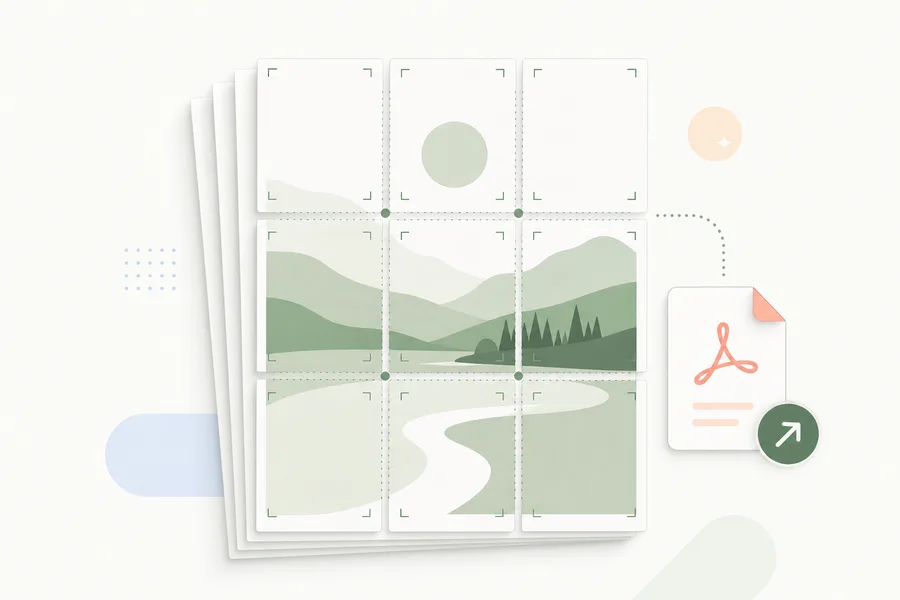
A block poster keeps one image visually continuous while the PDF exports it as printable page tiles.

Printable poster styles
Upload a photo, choose a poster style, and download a tiled PDF. Start with the original image, simplify it into posterized color blocks, or make a halftone wall poster.
Print the uploaded image as a tiled poster.
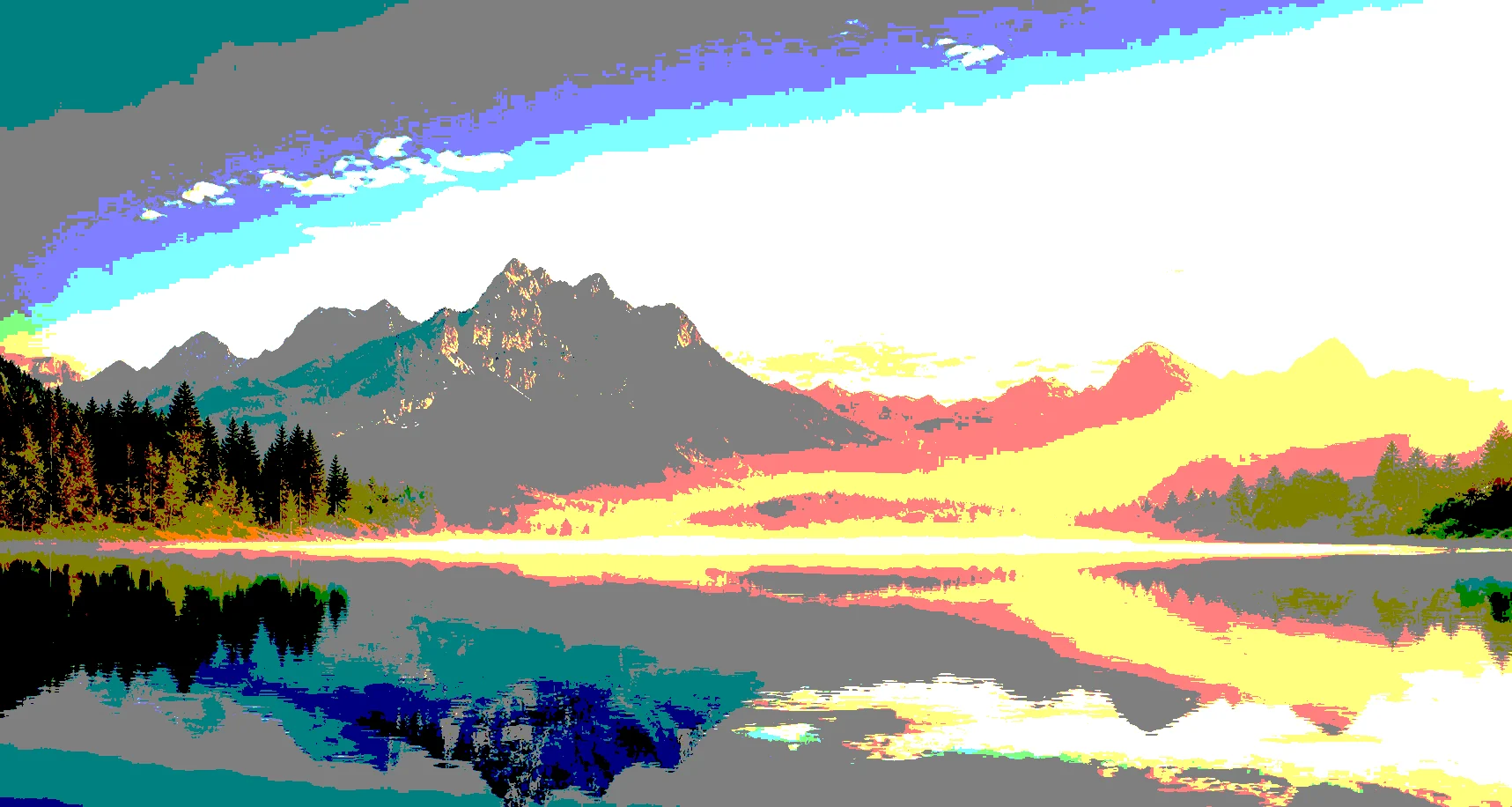
Flatten colors into bold three-tone poster blocks.
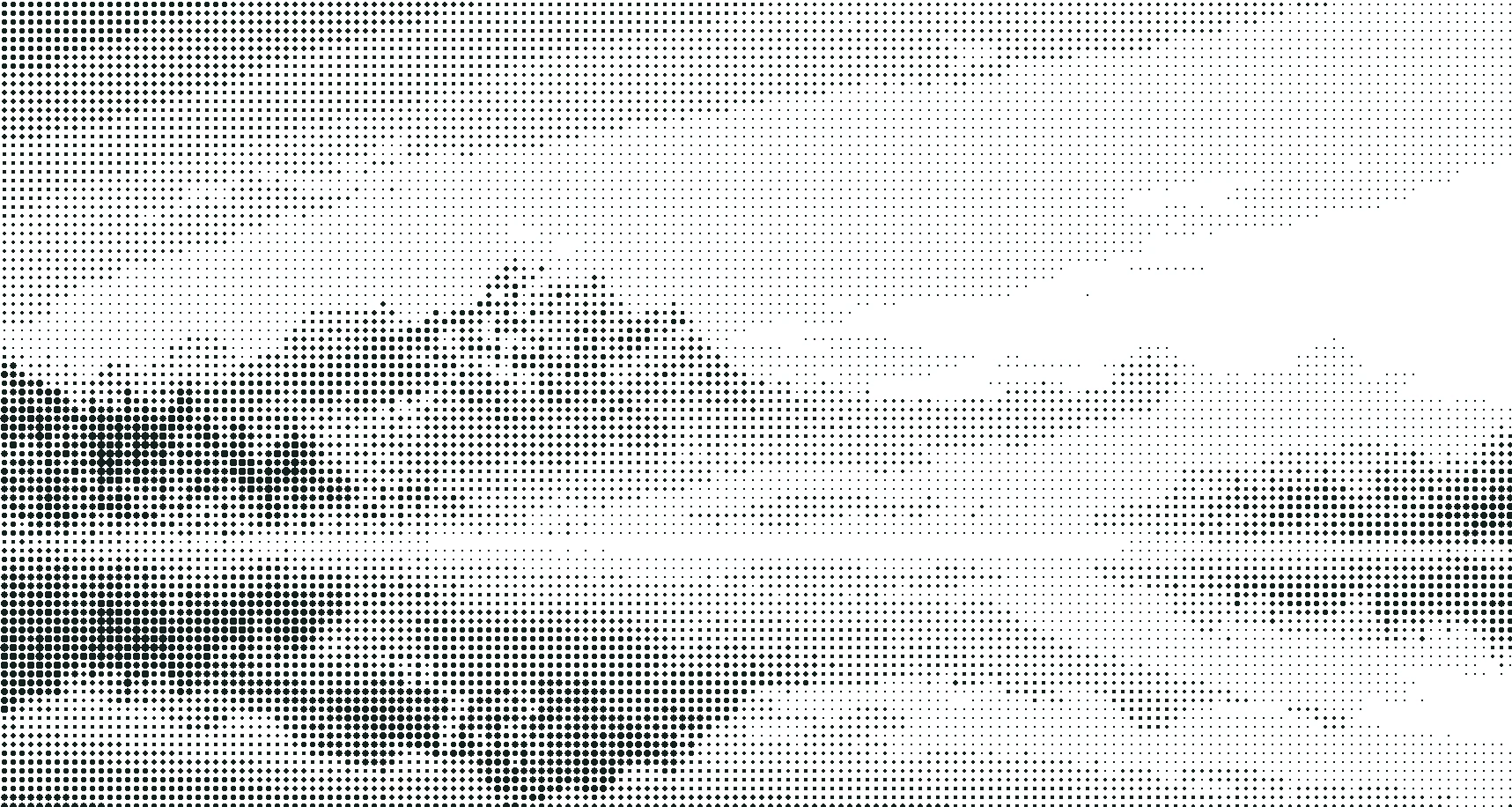
Convert the image into a dot-style wall poster.
Before / after preview
One uploaded photo can become different printable poster looks before you export the PDF.
The uploaded image stays intact before any poster style is applied.
Colors flatten into stronger blocks so the print reads more like wall poster art.
A dot screen gives the same photo a graphic print texture before PDF export.
Online poster tiling tool
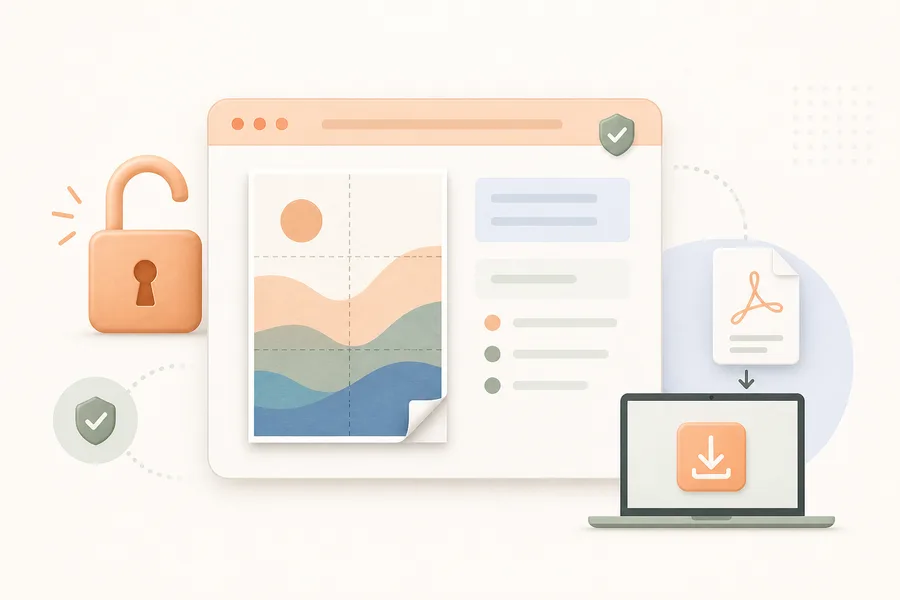
This block poster maker turns one image into a tiled PDF for home printers. Use it to print a poster on multiple pages, choose Fit or Fill image mode, and assemble the pages into one large poster.
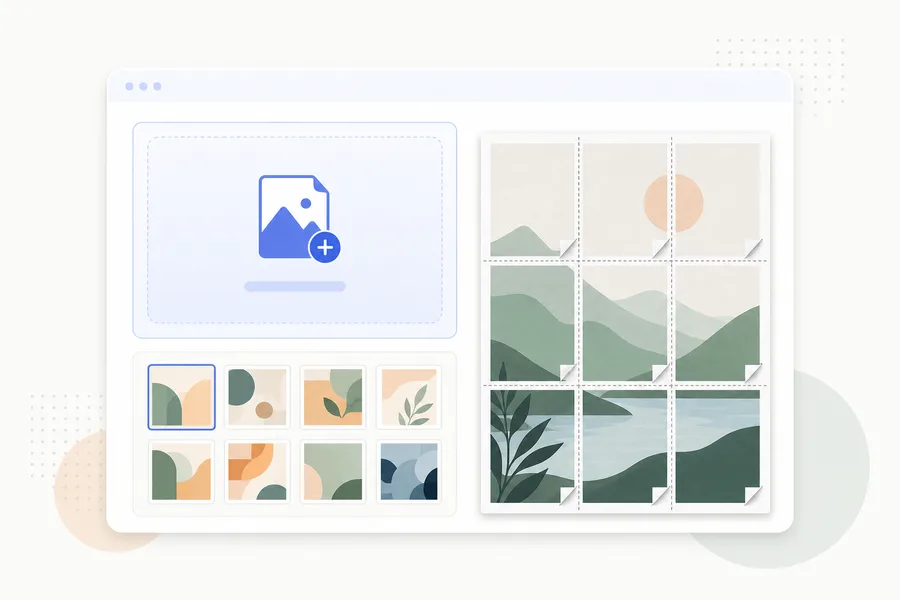
Upload your own file or choose a ready-made poster template for the block poster.
Pick paper size, pages wide, image fit, overlap, and margin for the multi-page poster grid.
Download the tiled poster PDF and print it at Actual Size / 100%.
Multiple-page poster guide
These steps cover the long-tail printing workflow: make the PDF, keep the scale correct, and assemble the pages cleanly.
Definition
A block poster is one image split across multiple printed pages. Each sheet becomes one tile of the larger poster, and the printed pages are joined together after printing.
This format is useful when you want a large poster but only have a standard home or classroom printer. Instead of ordering a large-format print, you create a multi-page poster PDF and print it on common paper.
Tool features
Built for fast poster printing without account setup, server upload steps, or complex print software.
Start making a block poster without creating an account.
Your image is processed in your browser and does not need to be uploaded to a server.
Export your poster as a multi-page PDF for Letter or A4 paper.
Keep the full image visible or fill the poster grid by cropping the edges.
Add overlap between pages so the printed poster is easier to tape together.
Choose a template or upload your own JPG, PNG, or WebP image.
Poster ideas
More poster resources
Use these related pages to plan poster size, choose paper format, and learn cleaner multi-page printing workflows.
Common questions
Quick answers about block posters, multi-page PDF printing, image privacy, and scale settings.
A block poster is one image split across multiple printed pages. After printing, the pages are taped together to make one large poster.
Upload an image, choose the paper size and poster grid, download the PDF, then print it at Actual Size or 100% so each tile keeps the correct scale.
Yes. You can use JPG, PNG, or WebP images. Higher-resolution images usually produce sharper large posters.
Yes. You can make a block poster online without creating an account or signing in.
Fit keeps the full image visible and may leave white space. Fill covers the full poster grid and may crop the image edges.
Yes. Print the PDF at Actual Size or 100%. Do not choose Fit to Page, because that can shrink the tiles and break the alignment.
No. The image is processed in your browser and does not need to be uploaded to a server.