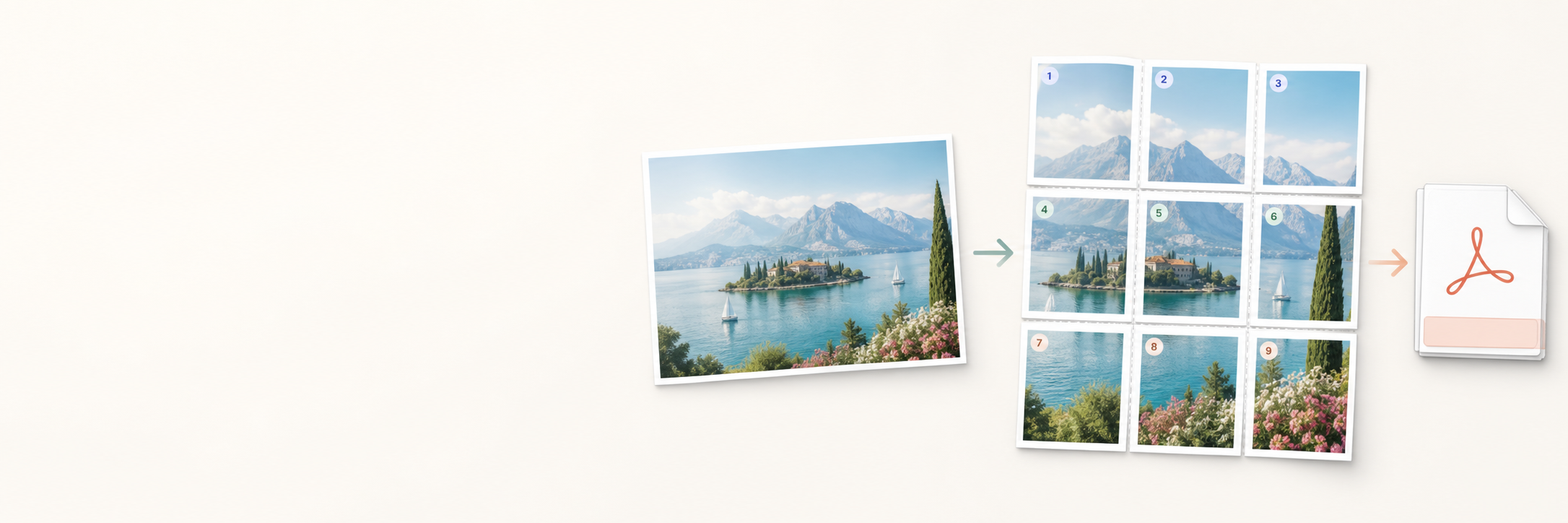
Step by step
How to use an image splitter for poster printing
Step 1
Upload your photo or image
Start with the JPG, PNG, or WebP file you want to enlarge with an image splitter for poster printing.
Step 2
Choose the printer paper
Select A4 or Letter paper so the generated tiles match the sheets in your printer.
Step 3
Set the poster layout
Choose how many pages wide the poster should be and let the tool calculate the page-sized grid.
Step 4
Pick Fit or Fill
Use Fit when the full image must stay visible, or Fill when edge-to-edge poster coverage matters more.
Step 5
Add overlap for assembly
Overlap gives repeated image area along tile edges, which helps when trimming and taping pages together.
Step 6
Download the poster-ready PDF
Export one ordered multi-page PDF after the image splitter for printing creates the page tiles.
Step 7
Print at 100% and assemble
Print at Actual Size or 100%, then align the sheets by row and column to make the final poster.