Block Poster Maker
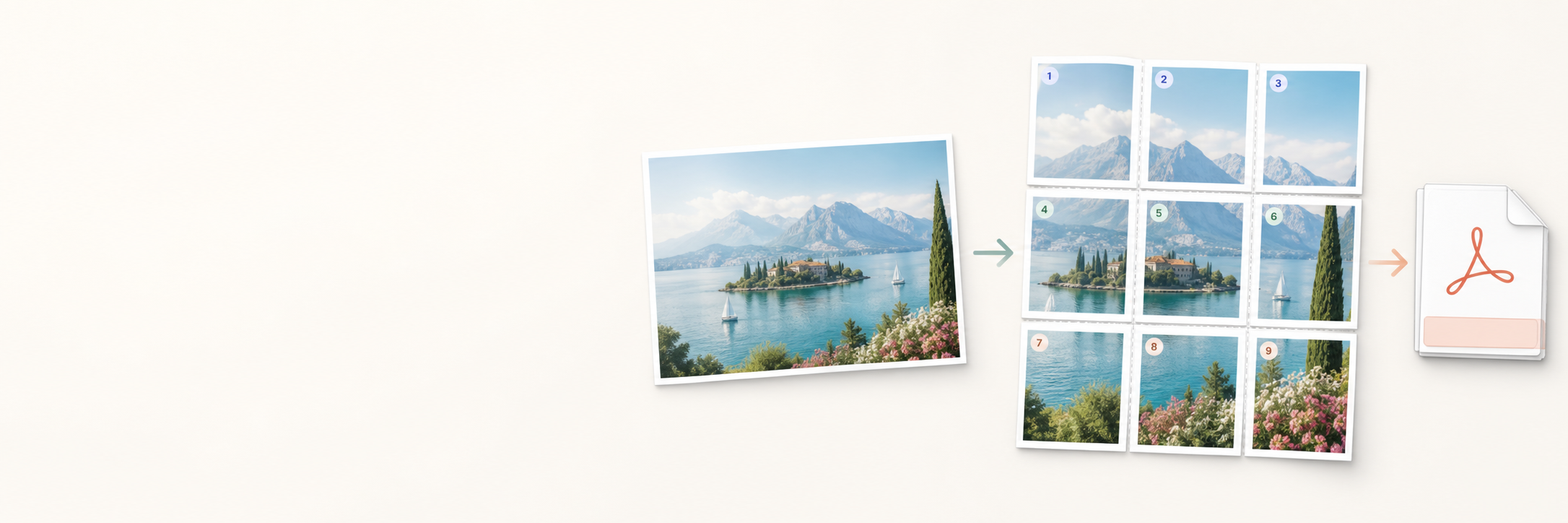
Large image split into page-sized tiles for multi-page poster printing

Image splitter for home printing

Split Image to Print on Multiple Pages

Use this browser-based tool to split image to print on multiple pages. Upload one large image, choose A4 or Letter paper, preview page-sized tiles, and download a tiled PDF for printing at 100%.

Split large images Page-sized tiles Ready-to-print PDF

Step by step

How to split image to print on multiple pages

Step 1

Upload your image

Start with the JPG, PNG, or WebP file you want to enlarge when you split image to print on multiple pages.

Step 2

Choose A4 or Letter paper

Select the paper size loaded in your printer so every tile is generated for the right sheet.

Step 3

Set the page grid

Choose how many pages wide the final image should be, or let the tool calculate a practical layout.

Step 4

Check Fit or Fill

Use Fit when the full image matters, or Fill when you want edge-to-edge poster coverage.

Step 5

Preview page-sized tiles

Confirm that important details are not cropped before downloading the PDF.

Step 6

Download the tiled PDF

Export the ordered multi-page PDF after the image is split into printable tiles.

Step 7

Print and assemble

Print at Actual Size or 100%, then trim, align, and tape the pages together.

Split a large image into page-sized tiles

The goal is simple: one source image becomes a grid of printable sheets that can be assembled into a larger poster.

Keep the image in order

A tiled PDF keeps rows and columns together, so you do not have to manage separate image files.

Use normal printer paper

A4 and Letter sheets are enough for classroom charts, birthday posters, maps, and wall photos.

Choose Fit or Fill

Fit preserves the full image. Fill crops the edges to cover the whole poster grid.

Add overlap when needed

Overlap gives you repeated image area for trimming and clean assembly.

Best settings before printing

When you split large image into multiple pages, the export step creates the tiles but the print dialog still controls scale. Use Actual Size or 100% so every page keeps the same dimensions.

Avoid Fit to Page, Shrink to Printable Area, or custom scaling below 100%. Those settings can make each tile smaller and cause seams to drift when you assemble the final image.

Print one test page before the full set. This helps catch margin clipping, wrong paper size, or a low-resolution source image early.

Common mistakes when splitting images for printing

Using a low-resolution source

Small screenshots can look blurry when enlarged. Use the sharpest image you have or reduce the page grid.

Choosing the wrong paper size

If the PDF is built for A4 but your printer uses Letter, the final size and margins may not match.

Printing with Fit to Page

Scaling in the print dialog can shrink the tiles and make the assembled poster misalign.

Cropping important edges

Switch to Fit when text, faces, labels, or map details near the image edge must stay visible.

Printing FAQ

How do I split image to print on multiple pages?

Upload the image, choose A4 or Letter paper, set the page grid, download the tiled PDF, and print every sheet at Actual Size or 100%.

Can I split large image into multiple pages online?

Yes. The tool runs in your browser and creates a tiled PDF for printing and assembly.

Can I split image into multiple pages for printing on A4?

Yes. Choose A4 as the paper size before exporting the PDF, then print at 100% scale.

Should I use Fit or Fill?

Use Fit when the full image must stay visible. Use Fill when you want the poster grid covered edge to edge and cropping is acceptable.

Why should I print at 100%?

Printing at Actual Size or 100% keeps every tile at the exported scale, which makes assembly more accurate.

Does the image need to upload to a server?

No. The image is handled in the browser for the poster PDF workflow.