Plain-language guide
How to Split an Image Into A4 or A3 Pages
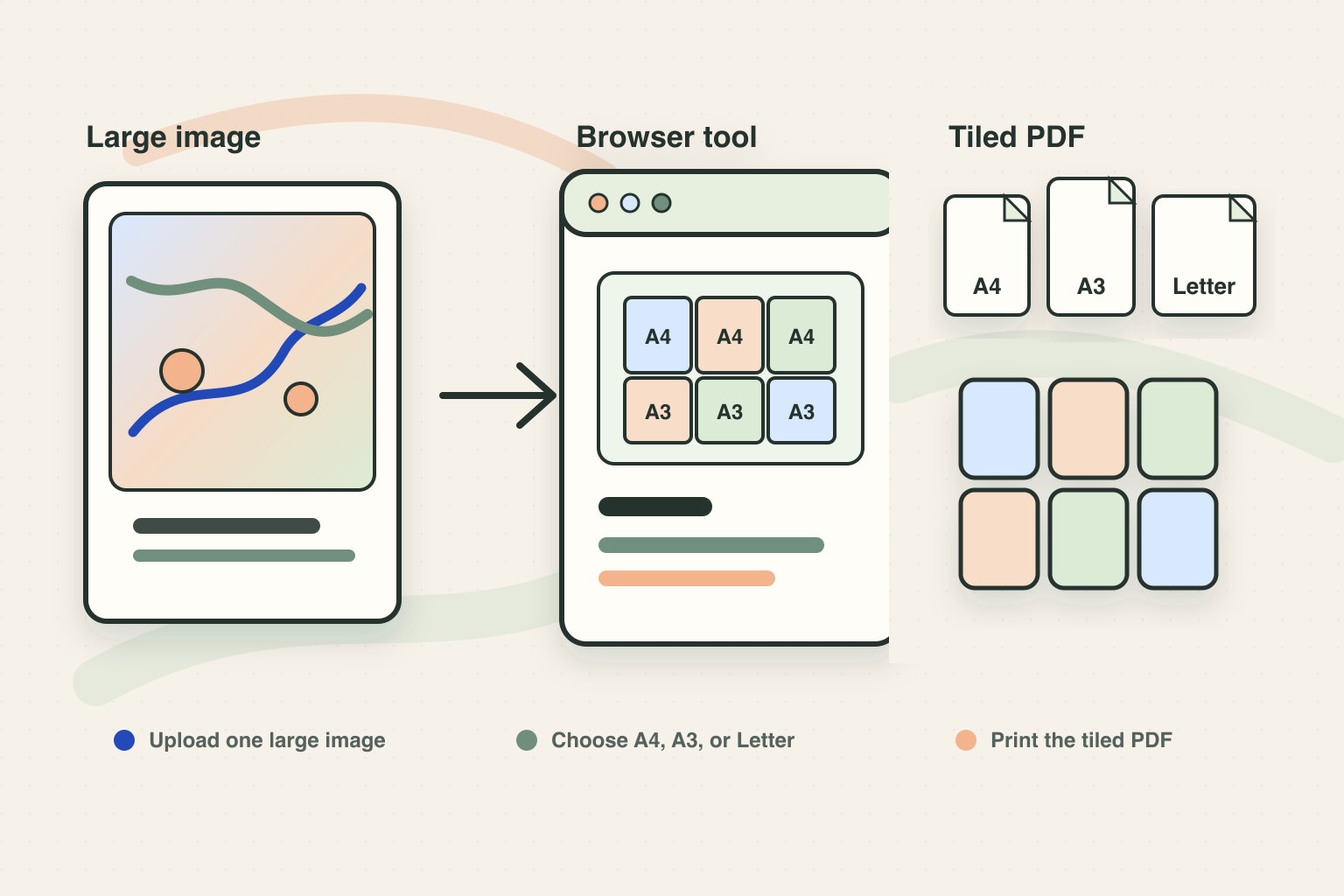
Block Poster Maker helps you split one image into multiple printable pages. In plain words: upload a picture, choose A4, A3, or Letter paper, download a tiled PDF, print the pages at 100%, and tape them together into one larger image.
What does this website actually do?
The simple answer is that Block Poster Maker splits an image into pages for printing. If your printer can only print normal sheets, the tool turns one large image into many smaller page tiles.
You can use it when you want to split image into A4 pages, split image into A3 pages, or split image into multiple pages for a poster. The output is a tiled PDF, so the pages stay in order when you print.
A block poster is just a large poster made from normal printer pages. You print each tile, line up the edges, and assemble the sheets into one bigger image.
Split one image into printable page tiles
The source picture is divided into a row-and-column grid so each piece can fit on a normal sheet of paper.
Create one tiled PDF for normal printers
Instead of exporting many loose image files, the tool keeps the page tiles together in a single PDF that is easier to print in order.
When would you split an image into A4 or A3 pages?
This workflow is useful when you have one image that is too large for a single sheet of paper. Common examples include classroom maps, event signs, birthday posters, wall photos, diagrams, game posters, and simple decorations.
If you search for split image into A4 pages, you probably want a normal home or school printer to make a larger print. If you search for split image into A3 pages, you may want fewer but larger sheets. The idea is the same: one source image becomes a grid of printable pages.
You do not need large-format printer software. The browser tool creates the page layout and gives you a PDF that a normal PDF viewer can print.
Classroom maps and charts
Maps, diagrams, and teaching charts often need to be larger than one sheet so students can read them from a wall or board.
Birthday posters and event signs
Party signs, birthday images, and event posters can be printed at home when the image is split across several sheets.
Large wall photos and decorations
Wall photos and simple decorations work well as tiled prints because the final image can be assembled after printing.
- Maps and classroom charts
- Birthday or event signs
- Large wall photos and posters
How the workflow works
Start by uploading a JPG, PNG, or WebP image. The tool reads the image in your browser and shows a preview before you download anything.
Choose A4, A3, Letter, or another paper size that matches your printer. Then choose how many pages wide the final print should be. More pages create a larger final poster, but they also take more time to trim and assemble.
Download the tiled PDF and print it at Actual Size or 100%. Avoid Fit to Page, because scaling can shrink the tiles and make the image harder to align.
Upload a JPG PNG or WebP image
Start with the clearest source image you have so the enlarged poster still looks readable after it is split into pages.
Choose A4 A3 or Letter paper
Pick the paper size your printer can actually use, then choose the page grid that controls the final poster size.
Print the tiled PDF at 100%
Use Actual Size or 100% in the print dialog so every tile keeps the same scale and the edges line up.
- Upload one image
- Choose paper and page grid
- Print the PDF at 100%
A4 vs A3 vs Letter
A4 is common in many countries and works well for school, office, and home printing. Letter is common in the United States. A3 is larger than A4, so it can make a larger poster with fewer sheets if your printer supports it.
The best choice is the paper you can actually print. If your printer only has A4 paper, split image into A4 pages. If your printer supports A3 and you want fewer seams, split image into A3 pages.
The important print setting is scale. Whatever paper size you choose, print at 100% so every tile keeps the same size.
What comes out of the tool?
The tool creates a tiled PDF. Each PDF page contains one part of the original image. After printing, you arrange the pages by row and column, trim or overlap edges if needed, and tape the sheets together.
A PDF is better than downloading many separate image files because it keeps the page order together. It also gives you a predictable print workflow in the browser or a PDF viewer.
For a first test, use a small grid such as 2 x 2 or 3 x 3. Once you know your printer margins and scale settings, you can make a larger version.
Block Poster Print Settings FAQ
Can I split image into A4 pages online?
Yes. Upload the image, choose A4 paper, set the page grid, download the tiled PDF, and print the pages at Actual Size or 100%.
Can I split image into A3 pages?
Yes, if your printer supports A3 paper. Choose A3 as the paper size, export the tiled PDF, and print at 100% scale.
What does split image into multiple pages mean?
It means dividing one image into a grid of printable page tiles. Each tile prints on a normal sheet, and the sheets are assembled into one larger image.
Should I print the tiled PDF with Fit to Page?
No. Use Actual Size or 100%. Fit to Page can shrink each tile and make the assembled image harder to align.